 Pidgin is a multi-protocol Instant Messaging client that allows you to use all of your IM accounts at once. It can be found at http://pidgin.im/ I have been using it for a while now when AIM started putting advertisements into there software. Pidgin was formally GAIM which changed its name due to legal reasons and started to rewrite their software. My friends and I have been using it for a while now and really enjoy it. However there is one complaint I hear a lot and that has to do with appearance and themes. It is for this reason that I am putting together a little guide of steps I have taken to make pidgin more my style.
The Original Buddy list is depicted below.
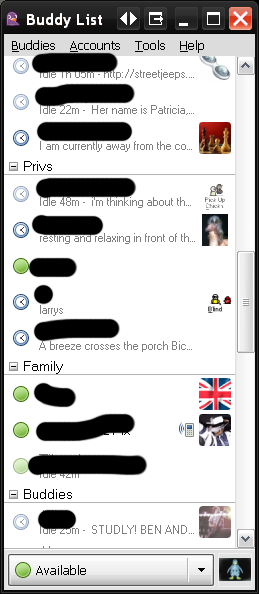
One thing that I do not like is that the icons each name takes up so much space. This is because the idle time and buddy information is being displayed under each buddy name. I started by disabling this feature.
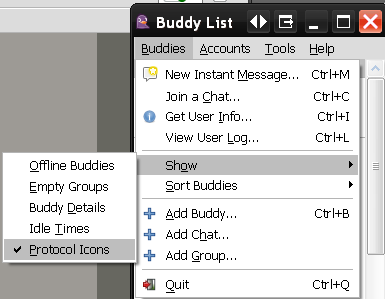
- Go to buddies
- Show and un check buddy details, idle times and enable protocol icons to a style of your liking.
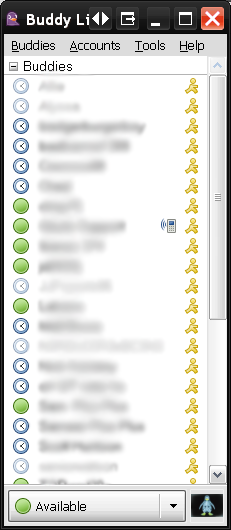
By doing this I can easily see more buddies online at any given moment, my buddy list looks something like and all those details I disabled are still available just by hovering over a buddy with my mouse.
Another complaint I often here is the lack of themes. Well actually there is support for themes. I will admit its a little hidden, but I am going to walk you though it now and show you where you can find hundreds of free themes.
- Pidgin uses the GTK+ orThe GIMP Toolkit for creating its graphical user interfaces. This is because it is cross platform and so is Pidgin. While my tutorial is geared towards windows users I am sure its very similar to other operating systems.
- We need to start by enabling GTK+ control in pidgin. To do that go to Tools > Plugins> and check Pidgin GTK+ Theme Control.
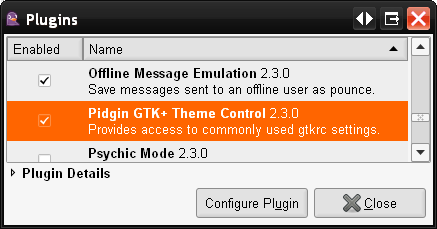
- Press Configure Plugin.
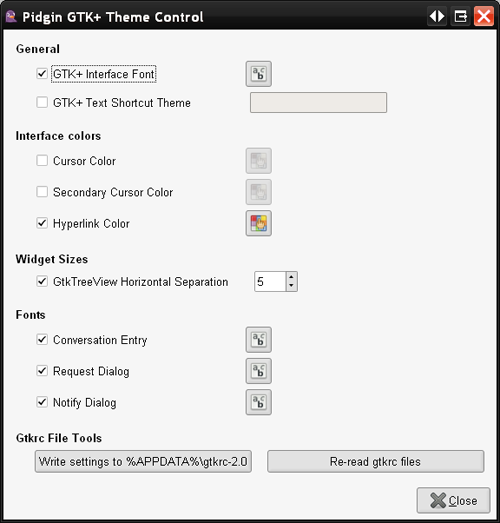
- Everytime you change your theme press Re-read gtkrc files to apply the theme.
- To select a new theme go to Start > All Programs > GTK+ > Theme Selector. Select a theme and press ok, then Re-Read gtkrc files to see the theme applied to Pidgin.
- Download new themes at http://art.gnome.org/themes/gtk2/
- Unzip themes and store them in the C:\Program Files\Common Files\GTK\2.0\share\themes folder.
- I used the Litoral theme, without spending hours searching.
- Make sure you adjust the GTK+ Interface Font so it looks good with your theme. I ended up using Arial normal styles size 10.
- Now chagning the Pidgin default icons, by default they are located in C:\Program Files\Pidgin\pixmaps\pidgin
- I started picking an Icon set I liked. I found a few pre-made sets with some Google searches here some links
- Ubuntu Style
- Pidgin_neu Theme
- Pidgin_osX
- Pidgi_osX2
- A search for pidgin on this site will bring up even more.
Make sure Pidgin is not running when you make this change and make sure you backup your original icons. If you can not find any you like, you can Google search for more or make your own.
* Originally found on this forum
I settled on the Glossy Theme
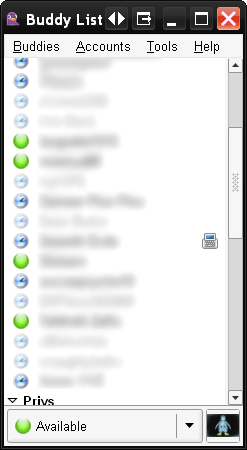
In the end my pidgin looks a little something like this, I plan on tweaking it out some more though, I will keep you posted. If this post helped you in anyway please leave a comment and let me know.
Whoo! Thank you for the clear explanation of how to use the Theme Selector (which I didn’t even realize was on my computer). It would be nice if Pidgin made it more obvious than the listing of themes at install time.
•Gert
great guide on how to to do this but i have a question
how do you unzip the themes downloaded from the site? do i need a certain program?
thanks in advance
thanks man, a very good guide it helped me alot, i just switched to pidgin and was looking for a way to make it look better. thanks again 🙂
p.s. is there a way to change the sounds of pidgin? (i.e. message recived & message sent)
ilya,
I haven’t used pidgin in a year or so, I use Digsby now. I would check in you c:\program files\pidgin folder to see if there is a sounds directory, you could replace the MP3, or Wav files. Maybe someone else can shine some light on this problem.
Sam
you are rock!
Nice 😀
But … Pidgin crashes as soon as I re-read gtk (or start pidgin again) when I don’t use MS Windows theme 🙁
(try : clearlooks, like, litoral themes…)
Any idea?
Sorry for the delay in my response. I was just checking my Spam comments and your’s accidently got marked as spam. To be honest I haven’t used pidgin in over a year. I have been using Digsby. I am not sure what is causing your issue. Do you get any type of error message?
Thanks for the step by step info. Appreciated Pal!
thanx but i got the same problem as antonin and this is what i get when it crashes
AppName: pidgin.exe AppVer: 2.5.5.0 ModName: libcairo-2.dll
ModVer: 0.0.0.0 Offset: 0001f5e8
Hey! thanks a lot for the very useful and detailed explanation.
If I choose a skin with a black background, how do I do to change the color of the message that other people write? I can change the color of my name, what I type, the color of my friends names, but I cannot change the color of their message… do I need another plugin?
thanks !
franmetti, what you need to do is set the “override message fonts” in the Pidgin preferences I believe. Then sent it to a lighter color.
Hey, thanks for the tutorial. I’m having trouble changing the font color of the status messages on the Buddy List.
Whenever someone plays a song the font fades into the background image, and I can’t figure out how to change the color.
Amazingly clear explanation and directions!!!I never even realized the presence of “GTK+” in my All Programs list, till I read thru your article. Exactly wht I was looking for. Thnx for the article! 5-thumbs up!!!!!
I did as you said, but the theme I unzipped from that website to the theme folder does not show up in the Theme Selector when I open it.
The themes need to go into Program Files\Common Files\GTK folder, not the one in Pidgin folder. Pidgin 2.7.0 tried to fix it by making GTK local (doesn’t affect the other apps) but ended up breaking GTK entirely on my Windows 7. Went back to 2.6.6 and works fine.
@ltaintrite Oh, is that why my text was light-grey on white and I couldn’t get the themes to work again? Glad I ran into your comment. Switching back to 2.6.6.
Ahh, soo much better! 🙂
Thanks for this. Pointed me in the right direction.
Hi,
I’m using pidgin 2.7.2 now and had a similar problem like the one described in the last comments.
I basically had to copy my theme from
C:\Program Files\Common Files\GTK\2.0\share\themes
To
C:\Program Files\Pidgin\Gtk\share\themes
(I’m assuming you installed pidgin to Program Files folder).
Then I went to pidgin plugins -> GTK+ Theme Control and reloaded the gtkrc file.
It all works now.
The only thing that “local installation of gtk+” means is that pidgin no longer uses a sysyem wide gtk+. Thus you have to install themes to Pidgin folder.
Hope that helps 🙂
Thanks a lot buddy..!
this tutorial helped 🙂
Hi!
I installed Pidgin 2.7.7. on Win 7 x64
Everything is fine but cannot install any of themes.
I checked Tools > Plugins> Pidgin GTK+ Theme Control 2.7.7
Go to “Configure plugin” and i can see button at the bottom “Gtkrc File Tools” – Write Setting to %APPDATA%\.purple\gtkrc-2.0 and “Re-read gtkrc files” button.
I have downloaded skins from http://art.gnome.org/themes/gtk2/
I also have default skins in: C:\Program Files (x86)\Pidgin\Gtk\share\themes
There are four of them by default … but again i cannot select neither of them.
How can i select gtkrc file?
Still don’t know how to change themes :((
Hi!
I have the same problem as Sero.
I installed Pidgin 2.7.7 on Win 7 64 bit. Everything works like the article but there is no theme selector in my Start –> All Programs folder.
Hope someone can help 🙂
So I found with some fiddling that you can change the theme by editing C:\Program Files\Pidgin\Gtk\etc\gtk-2.0\gtkrc (C:\Program Files (x86)\Pidgin\Gtk\etc\gtk-2.0\gtkrc for you x64 folks) to set “gtk-theme-name” to the name of the folder of the theme you want to use.
Theme selection itself does not work in Pidgin but theme does appear to be applied.
You will need to make the change with Pidgin closed and you will see the theme the next time you start up Pidgin.
I am also having a problem. I can follow all the steps just fine and understand everything, but I don’t seem to have gtk folder in the common files file folder nor on my start menu. Is there anywhere else this folder might be? This is my first time running pidgin.
I found the folder, it was not in common files it was in program files\pidgin\gtk\
I put the themes I have downloaded into the share\themes\
I have tried clicking re-read gtkrc files, i have tried restarting the program, but still the themes do not show up in the themes tab under preferences. What am I doing wrong? why isn’t this working? Even pidgin’s own site is useless in this regard. I’ve used several im programs before and I’ve never come across one so completely aggravating to customize to my likeing. unfortunatel I am stuck with it since msn’s latest “upgrade” is a major “downgrade” where security is concerend and I can no longer use the previous version as it’s forcing me to upgrade if I want to use the program.
Slowie, what can you edit to fix this? Your explanation isn’t very clear on what exactly to do. Could you possibly explain it step by step in detail and not be a little less elusive? If it works then i’d like to try it. Anything is better than the rather plain and bland look of the default settings. Any idea why the Theme tab in pidgin preferences no longer works properly? I applied a smiley them and it applied properly without issue. Haven’t tried sound themes or icon themes yet, but the bussy list theme sure is giving me trouble.
Chronia (and whomever else) – I went and tried Slowie’s method and it works great. It’s a tiny bit of editing. I’m on Windows 7 (32 bit), and here’s how I do it:
Do all of this with Pidgin closed. Once done, startup Pidgin and the theme should be in place.
I go here: C:\Program Files\Pidgin\Gtk\etc\gtk-2.0\
which gets me into the directory where I can see the gtkrc file. It’s not a file with an extension, so Windows doesn’t quite get what the heck to do with it if you double-click. So I right clicked on it and opened it with Notepad++ (You may only need Notepad, but if you need a better editing tool get NP++ here: http://notepad-plus-plus.org/download)
Then you simply change the theme by manually typing in the theme you want to use (mine had “MS-Windows”, and I changed it to the new theme folder I dropped into the Pidgin folder in Windows). If you’re on Windows 7 (or perhaps Vista as well), you’ll have to save the gtkrc file into your Documents directory. Then just copy the file, navigate in Windows Explorer back to the gtk-2.0 directory, and paste the modified gtkrc file.
Just to assure Slowie/Michael’s method really does work (I’m using pidgin 2.7.11 and win 7 32bits)!
Needless to say, this is a big pain in the *ss! I hope pidgin developers work around this mess soon!
Thank you for the solution mates!
Thanks Slowie&Michael, that method works but it is a MAJOR pain, had to use oldskuul “Edit” to, well, edit the gtkrc file (copy to somewhere else, edit, copy back to original folder) since Notepad felt like it deserved to be a .txt file.
Well, at least the theme can be changed. Hopefully this gets fixed sometime, but once you know how to do this I don’t think it’s that much of an issue anymore. Won’t take more than a minute to change a theme in the future. But this method should be included in the program’s documentation as long as it’s the only way to change a theme in Windows.
Thanks Michael, a pain but this worked a treat.
Appreciated.
i have no theme selector anywhere, nor gtk folder outside pidgin folder, what do?
Ive gotta say, its pretty pathetic that people have to go so far to theme Pidgin. It may be a cool program, but even after 2 hours of fiddling (even as a professional computer programmer) I am still unable to get Pidgin to take themes correctly.
Whats even funnier is that they even have a a themes tab in their prefrences that says “new themes can be installed by dragging and dropping them onto the theme list.”
Yeah that totally works. lol not.
Great work getting it to work guys, but lets focus on having an interface that doesn’t look like its from 1998.
@The Critic,
Granted I do not use Pidgin any more, I agree with this statement. If you notice this blog post was created in 2008. The fact this page gets as many hits as it does 4 years later, and has as many comments as it does about users trying to get themes to work is concerning.
Good luck!
thx for the tutorial, new pidgin user here, very helpful 🙂
question:
does somebody have an idea why this text stays dark, no matter what theme i try?
http://img7.imagebanana.com/img/wjw38173/123.jpg
black text on black background has bad contrast and the themes change the font color for everything else, just not that chat window …hrrrm
OK so after reading all these different steps and techniques, I can verify that Michael’s instructions work great:
“Do all of this with Pidgin closed. Once done, startup Pidgin and the theme should be in place.
I go here: C:\Program Files\Pidgin\Gtk\etc\gtk-2.0\
which gets me into the directory where I can see the gtkrc file. It’s not a file with an extension, so Windows doesn’t quite get what the heck to do with it if you double-click. So I right clicked on it and opened it with Notepad++ (You may only need Notepad, but if you need a better editing tool get NP++ here: http://notepad-plus-plus.org/download)
Then you simply change the theme by manually typing in the theme you want to use (mine had “MS-Windows”, and I changed it to the new theme folder I dropped into the Pidgin folder in Windows). If you’re on Windows 7 (or perhaps Vista as well), you’ll have to save the gtkrc file into your Documents directory. Then just copy the file, navigate in Windows Explorer back to the gtk-2.0 directory, and paste the modified gtkrc file.”
I only needed Notepad to edit the file.
There is one thing missing from this, which is key. That is..
When you paste your theme into the C/programs/pidgin/gtk/share/themes folder, you need to create a folder named with the Theme’s name, and inside THAT folder, you create a folder called “gtk-2.0″… that is where you dump all the theme files. THIS IS CRITICAL AS SKIPPING THIS STEP WILL CAUSE YOUR THEME TO NOT LOAD CORRECTLY.
Then just start up pidgin and you’re good to go. Guaranteed.
Thanks for the help everybody!
I found my Theme selector under – C:\Program Files\Pidgin\Gtk\bin\gtk2_prefs.exe
Great guide! Thanks for publishing it.
By chance, would yoiu know if its possible to change the “pidgin” icon itself?
Thanks again,
Mike