This was a problem I racked my brains over for a while when I first started using SSIS. I found a few possible including using a File System task to copy a “Template” Excel file over the existing on, or generating unique files by appending the date. I simply wanted to overwrite the existing data just like the Flat File Destination gives you that option.
My workaround was as flows:
Create the Data flow the way you normally would, then go to the Control View Then add two Execute SQL Tasks before your data flow is called so it looks like this
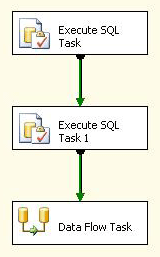
Set both Execute SQL Tasks to use the Excel file
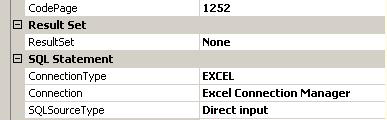
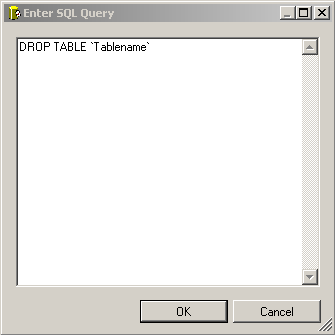
Set your first Execute SQL Task’s SQL Command to drop your table which is also known as the sheet name of your Excel file.
Repeat step 3 on the second Execute SQL Command this time create your tables.
If you are new to SSIS or looking for some more advanced help, one of my favorite books is Professional Microsoft SQL Server 2012 Integration Services
Just thot of trying ur suggestion…..but facing a problem as below….
What would be the best way to provide the table name in this qry ??
ERROR
[Execute SQL Task] Error: Executing the query “DROP TABLE Incident.xls” failed with the following error: “Syntax error in DROP TABLE or DROP INDEX.”. Possible failure reasons: Problems with the query, “ResultSet” property not set correctly, parameters not set correctly, or connection not established correctly.
The correct Syntax would be something like
DROP TABLE `Excel_Destination` SSIS uses those weird ` characters, it might be best to double click on your Excel destination try creating a new sheet then copy and paste the syntax just renaming create to drop.
This was a big help in an SSIS project I just completed. If you don’t mind, Here’s a little syntax for the CREATE table statement that creates a range called “employee” in excel with the following columns:
CREATE TABLE `employee` (
`emp_id` NVARCHAR(10),
`Last Name` NVARCHAR(30),
`First Name` NVARCHAR(20),
`Logon ID` NVARCHAR(50),
`Email Address` NVARCHAR(100),
`Office Location` NVARCHAR(3)
)
Nice Article! I have everything working except that the data is appending to my spreadsheet instead of overwriting it each time? What am I missing?
Matt, Glad you liked the article. You have to go into the control view of SSIS, and setup the SQL tasks to drop the table and recreate it. The excel destination does not have an overwrite feature by default. If you are getting stuck at a certain part let me know.
Hey Samuel, I got problem. I think you got answers to this question. I have excel sheet which is used for reporting. I have to update the excel column from sql server 2005. The problem here is that i can’t drop the table(in excel) as u suggest because i have used function linked with each column on the excel sheet to creat pi chart and other reporting charts. So How can i update each column without affacting those functions in excel sheet.
It doesn’t work.
You can’t perform [drop table sheet1] or [drop table UnusedIndexes] statment on excle sheet.
I’ve tried 13 times it doesn’t work.
I AM JUST DELETING A SPREADSHEET IN A UNUSEDINDEXES FILE.
I moved step by step… It doesn’t work.
//————-See below error———
SSIS package “Package.dtsx” starting.
Warning: 0x0 at Execute SQL on Sheet: Multiple-step OLE DB operation generated errors. Check each OLE DB status value, if available. No work was done.
Warning: 0x0 at Execute SQL on Sheet: Multiple-step OLE DB operation generated errors. Check each OLE DB status value, if available. No work was done.
Error: 0xC002F210 at Execute SQL on Sheet, Execute SQL Task: Executing the query “Drop Table UnusedIndexes” failed with the following error: “Table ‘UnusedIndexes’ does not exist.”. Possible failure reasons: Problems with the query, “ResultSet” property not set correctly, parameters not set correctly, or connection not established correctly.
Task failed: Execute SQL on Sheet
SSIS package “Package.dtsx” finished: Success.
Thank you so much for the help i was actually cracking my head for this, cause i knew the flat file connection can just overwrite the text, then how could i overwrite data in my excel file.
But this has been verry helpful
Thanks so much
Khurram Nazir
Well i have tried and i works.
First of all make sure that the table you are trying to delete is present, which means, at first step go to your dataflow task and create the table in the excel destination,
then after that,you can then delete the table and recreate it again in the second sql Task( with the same synthax you used in the excel destination)
and make sure that on the drop Table task dont use the parenthesis
example if you created a table
CREATE TABLE ‘user'(
‘userID’ nvarchar,
‘name’ nvarchar)
then the DROP statement will be
DROP TABLE user and not DROP TABLE ‘user’
Hope this will help you
This is great information. Thank you for publishing it.
The issue I am running across seems to be with the first step with the drop table.
I have the following drop statement (the CardSwipe tab does exist in the spreadsheet):
drop table CardSwipe
I get the following:
Error: 0xC002F210 at Excel Drop Table CardSwipe, Execute SQL Task: Executing the query “drop table CardSwipe” failed with the following error: “Table ‘CardSwipe’ does not exist.”. Possible failure reasons: Problems with the query, “ResultSet” property not set correctly, parameters not set correctly, or connection not established correctly.
I have another spreadsheet version where it does not delete the table, and does not fail, but I end up with a tab named CardSwipe1 inserted next to the CardSwipe tab. This says to me that it is obviously not deleting the tab before the new tab is inserted. It seems this is a tempermental process.
Any ideas on what I might be doing wrong with the drop?
Thanks,
Earl
Very well done., very useful.
Thanks for uploading
Well done. Thank you very much for sharing.
But what I was trying is to create dynamic worksheets with names taken from an SQL table.
Hope somebody could help!
Thank you very much! Very useful!
Thanks for sharing.
I’ve tried it. But it only drop the header(column created) of the excel file not the content of the excel file. How to fix this problem?
Thanks for help.
I also tried DROP TABLE `Sheet1` but gave me an error so then I tried
DROP TABLE `Sheet1$`. My Execute SQL Task was successfully completed but it actually didn’t delete the worksheet from the excel file.
I’m using Excel 2007 & SSIS 2008.
Any other suggestions please?
I cannot get the EST, DROP TABLE command to work. No mwaater the eyntax I try, it throws the error `Worksheet name` does not exist.
Please help.
The Drop Table statement only deletes the headers, and the Create Table statement only populates the headers. The Dataflow task always appends new rows. Why?
This is really slick. Everything works as described except one thing. When I populate the spreadsheet with lets say 50 records, and then run the SSIS Package again – it drops successfully, it creates successfully and even populates successfully but looking at the spreadsheet the first 50 rows are blank and starting with position 51 is where the 50 records now reside. Using Visual Studio 2008 with Excel 2007. Same results if I switch to Excel 97-2003. Not sure of any additional settings I could apply.
Barry,
I am no longer working on SSIS projects and do not have access to an installation to test on. The best I could do is look at your statments and see if something stands out. Post it here if you want me and others to take a look.
Hi Barry,
how would i ask if it exists, drop the table?
Jennifer
Whoops, I meant Samuel, not Barry 🙂
Thanks, you saved me a headache.
Hi , when i tried to use the
DROP TABLE `SheetName`
It is just deleting the header rows,leaving the other affected rows.
My data is getting piled up everytime and getting duplicate records.Can you please help on this. 🙁
Thank you very much. It’s very very useful & help me a lot 🙂
Very nice, this saved me some nasty VBA 😀
Thank you. After 90 minutes of looking for a solution to not being able to just overwrite an excel file, I came across your solution.
It works very well for my need.
you can do it in much simpler way, All you need to do is the following.
1.Have your excel template ready in some location with the same name of excel file in which you are having it as your destination .
2.Create a file system task to replace/copy type as template excel the source and your actual excel as destination.
3.Remaining dataflow task keep it as it is .
P.S:- File system task will be your first task before dataflow, you can also have a sql task if you want to create an excel in between those two, but depends on your requiremnet in my cas i didnt need it.
let me know if any queries 🙂
Cheers,
Aashish
hi i want now this excel file to be stored in table each day
how to do that..?
This was really so helpful .. Thanks for posting such a great information ..
Hi Dude
Such a nice article.
Its very straight forword.
Help me a lot.
Thanks and appreciate
Aashish, your file system task work around worked for me. Take an exact replica of your excel destination sheet. Make sure it has no data in either of them. Take the replica and put it in another location on your PC. Point to it in your source part of the file system task. In the file system task point to the original sheet (that is found in the excel destination) in your destination part of the file system task.
cont… i did not even use an execute sql task ..just the file system task place in the control flow above the data flow.. thanks aashish
cont… one more time in the file system task you also have to make overwrite (true) .. thanks again
I was having the same issue as Syne, Kaborka and Lakshmi and this suggestion might help Barry. In the Dataflow task make sure that your destination sheet is Sheet1, and not Sheet1$. Took me a few hours to figure that one out. Hopefully someone finds this useful.
Cheers,
fjc
Why not just DELETE from? In that way you’ll avoid DROP and then CREATE
Worked for me – thnx
Hi ,
I have a similar requirement would be great if you can help.
I have 1 parameters @p1 ( can have values Month and Qtr ) so my OLEDB source can produce result whos column name will be based on @p1 , if @p1 = Month the result columns will be Income_Month,Revenue_Month same way if @p1 = Qtr the result columns will be Income_Qtr and Revenue_Qtr. So infact the output reult column is dynamic based on input paramter ( here I have showed only 2 fields but actually I have somany columns )
In this case do we have any option to use Excel destination?
Thanks,
Mithun
I’ve tried it. But it only drop the header(column created) of the excel file not the content of the excel file. How to fix this problem?
I am trying to drop the table, thinking it would drop the whole sheet but it doesn’t, only the structure in the sheet, but my create table statement when I try and set it up again it says object already exists i.e. the sheet. So how can it not drop the whole sheet with the name I gave it but it won’t recreate it when I try and remake it. Drop and Delete must mean the same thing when applied to Excel
Also I tried DELETE FROM MyTable and it fell over, same with almost any other statement, the only one that works is DROP MyTable and I don’t put the ‘MyTable’ quotes round it. If I put quotes then that statement also fails.
In addition to the above I also noticed my drop statement is only removing the columns and leaving the data so SSIS gets to a point where it keeps adding the rows up and fails out because excel hits 65K rows. I can’t use truncate or delete because it just fails.
The solution to this is as follows:
Use a file system task to delete the file instead of a sql task to try and delete the data.
Then run the create table statement, this recreates the file you deleted I don’t know how it picks up the old file name but after the create table statement I have a data flow task that pulls data from SQL server – populated/manipulated before my create table stuff) into the excel sheet table I created, and this uses the excel connection manager that links to the file I am deleting so maybe it knows I am using this file and recreates the table in that file. I’m not exactly sure how it does it and I don’t know any limitations or any other scenarios that might now work but this does.
PROBLEM WITH THIS IS WHEN I’M GOING TO EXECUTE THIS PACKAGE ON NEXT DATE BECAUSE OF MY EXCEL FILE IS GENERATING DYNAMICALLY DEPENDING UPON SYSTEM DATE, IT IS GIVING ME AN ERROR
LIKE TABLE NOT THERE .. CAN NOT DROP TABLE
PLEASE ADVISE ?
I ran into the same issue as Barry, very annoying indeed.
– Successful drop table
– Successful inserts
– All inserts (not just the top 50) were blank, but only after the 1st run.
Instead of using drop table, I ended creating an empty template file that had the columns and data types needed (created by ssis). On the end of each run, I use a file system task to copy the empty template to overwrite the file that will hold the data to be sent on next run.
HI aashish,
i tried file system task its working in some way but i am having some problems with it.
I have to close my excel sheet every time i am running package then and then only its overwriting the old content ow its appending if my destination is open.
Failed to drop the table because the CREATE task produced the following error:
[Execute SQL Task] Error: Executing the query “CREATE TABLE insurance (
aasa_membershipnumber NV…” failed with the following error: “Table ‘insurance’ already exists.”. Possible failure reasons: Problems with the query, “ResultSet” property not set correctly, parameters not set correctly, or connection not established correctly.
It works for me. Thanks for sharing.
Thanks you worked 100%…thanks again Samuel Haddad!!!
REGARDING ERROR “TABLE NOT EXIST”
Thanks Samuel, it was of great help, thank you so much for this article.
In order to avoid this error which happens during the first run is to change the precedence constraint from success to completion 🙂
Not a very suggested option but this will be one time job, from next runs it will work just fine.
Thank you so much..it helped me…
hi to all
solution 100% through excel like flat be careful guys
firstly drop table exceltable_name– first execute sql task
then create table exceltable_name like t_sql for the table — on 2nd execute sql task
don’t use both script in one.
I mean drop first and create in second .